
OLED Screen Burn-In Test Online
Choose a quick test
Tap a card to jump straight into that set of tests.
Choose the test(s) you would like to perform
Tap a test to select it, or the info icon to see what it checks.
Exit this test?
Your progress on remaining tests will be lost. Completed results so far won't be saved.
Your results
Here's how your display performed across the tests you ran.
Before you start
- 1 Clean your screen so smudges aren't mistaken for dead pixels or clouding.
- 2 Dim the room for backlight bleed, light leakage, and black-level tests — these show up best in the dark.
- 3 Use normal room lighting for color, brightness, and uniformity tests.
- 4 For touch tests, use a finger or stylus and try to cover the entire screen, including edges and corners.
- 5 Fullscreen mode gives the most accurate results — allow it if your browser prompts you.
- 6 Motion and refresh-rate readings are approximate, browser-measured estimates — not exact hardware specs.
OLED PANEL LAB
OLED Screen Burn-In Test
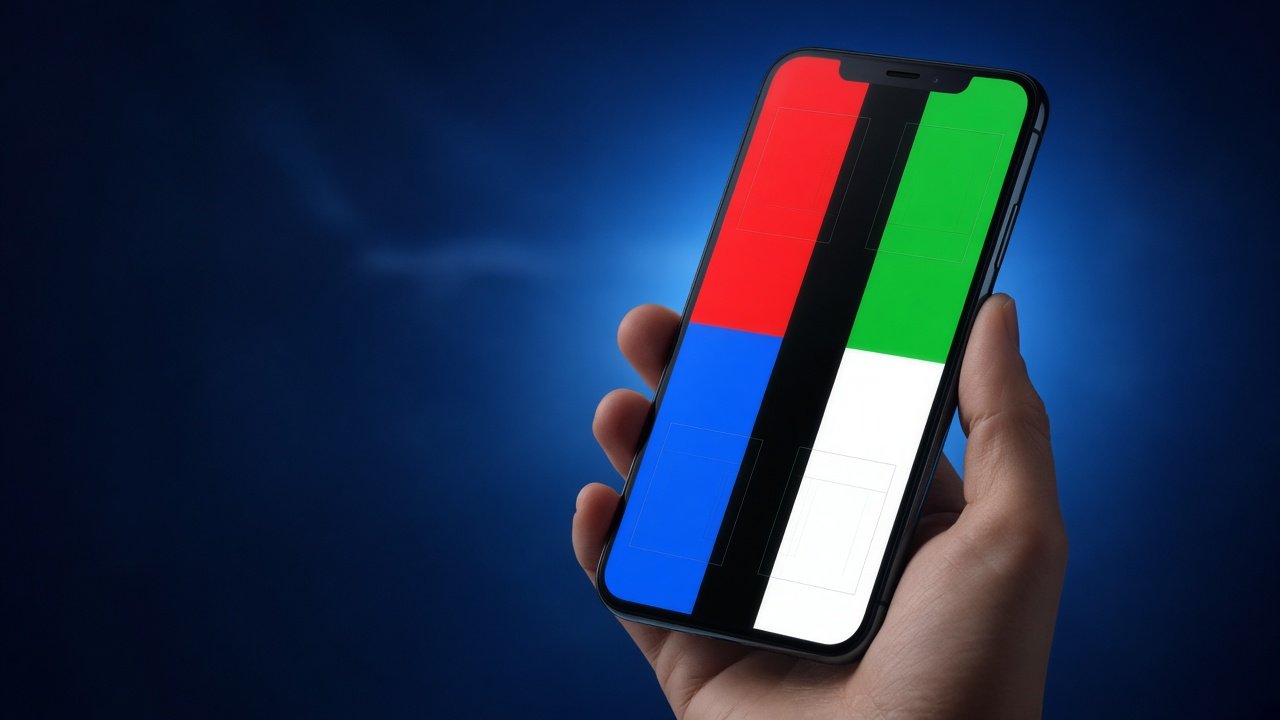
Free OLED screen burn-in test for phones, tablets, and OLED monitors. Detect pixel wear, color shift, subpixel aging, and permanent UI ghosts with gray and primary-color fills. Built for clear visual inspection—no app required.
Related Tools
iPhone Screen Burn-In Test
Super Retina OLED checks, notch and Always-On Display tips.
Phone Screen Burn-In Test
Universal phone workflow for any brand or panel.
OLED Screen Burn-In Test
Pixel wear, color shift, and subpixel inspection.
Android Screen Burn-In Test
Gesture bars, punch-hole cameras, and OEM UI wear patterns.
LCD Screen Burn-In Test
Retention versus backlight bleed and dead pixels.
Samsung Screen Burn-In Test
AMOLED panels, One UI navigation bar wear, edge-screen ghosting.
Monitor Screen Burn-In Test
Retention versus backlight bleed and dead pixels.
Laptop Screen Test
Test your laptop's screen for dead pixels, backlight bleed, color accuracy, and uniformity — right in your browser, no app required.
Tablet Screen Test
Test your tablet's screen for dead pixels, touch response, brightness, and color accuracy — right in your browser, no app required.
Macbook Screen Test
MacBook Screen Test helps you check your MacBook display for dead pixels, screen colors, brightness, and display issues.
Oppo Screen Test
Oppo Screen Test helps you check your display for dead pixels, colors, brightness, touch issues, and other screen problems.
Ipad Screen Test
iPad Screen Test helps you check your iPad display for dead pixels, colors, brightness, touch sensitivity, and other screen issues.
Google Pixel Screen Test
Google Pixel Screen Test helps you check your Pixel display for dead pixels, colors, brightness, touch sensitivity, and other screen issues.
Redmi Screen Test
Redmi Screen Test helps you check your display for dead pixels, colors, brightness, touch sensitivity, and other screen issues.
OnePlus Screen Test
OnePlus Screen Test helps you check your display for dead pixels, colors, brightness, touch sensitivity, and other screen issues.
What Is OLED Screen Burn-In?
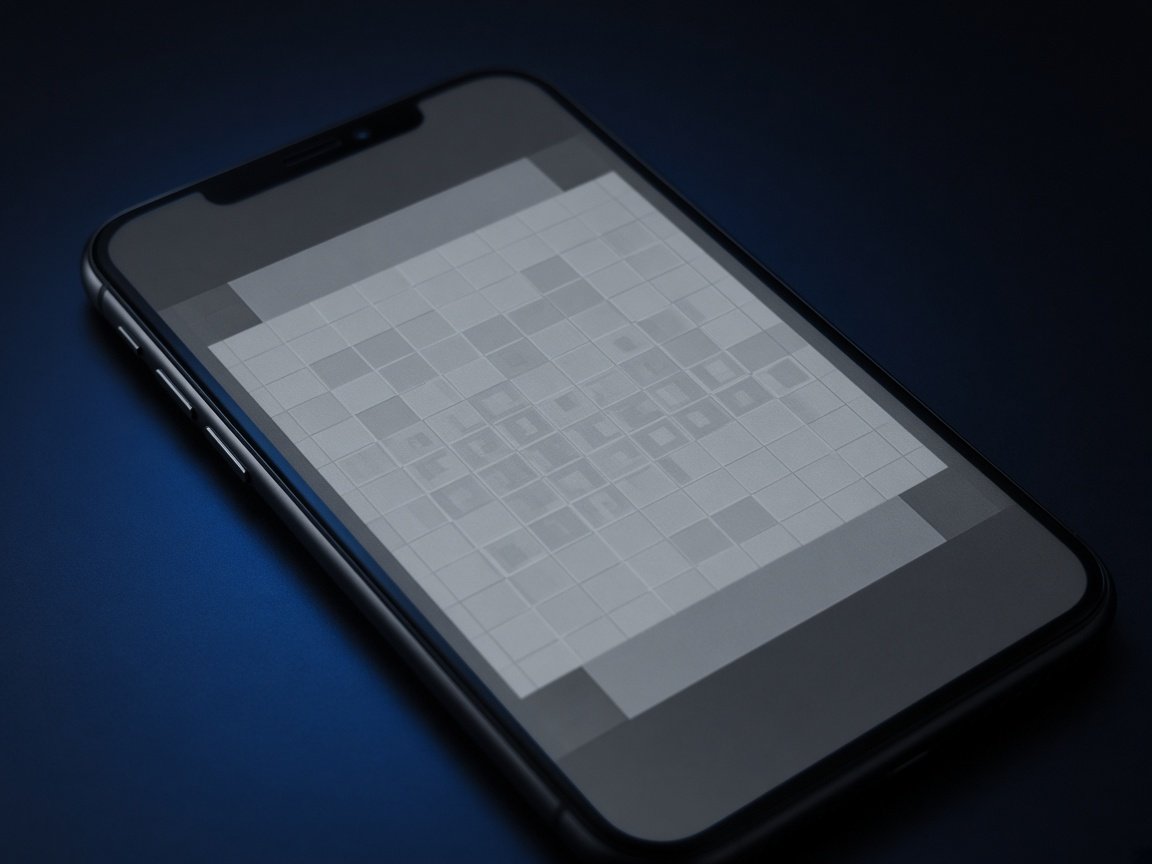
OLED pixels emit their own light. Organic materials age with use, and bright static content ages local subpixels faster. The result is a lasting silhouette—status icons, taskbars, HUDs—visible on uniform backgrounds. That is OLED burn-in.
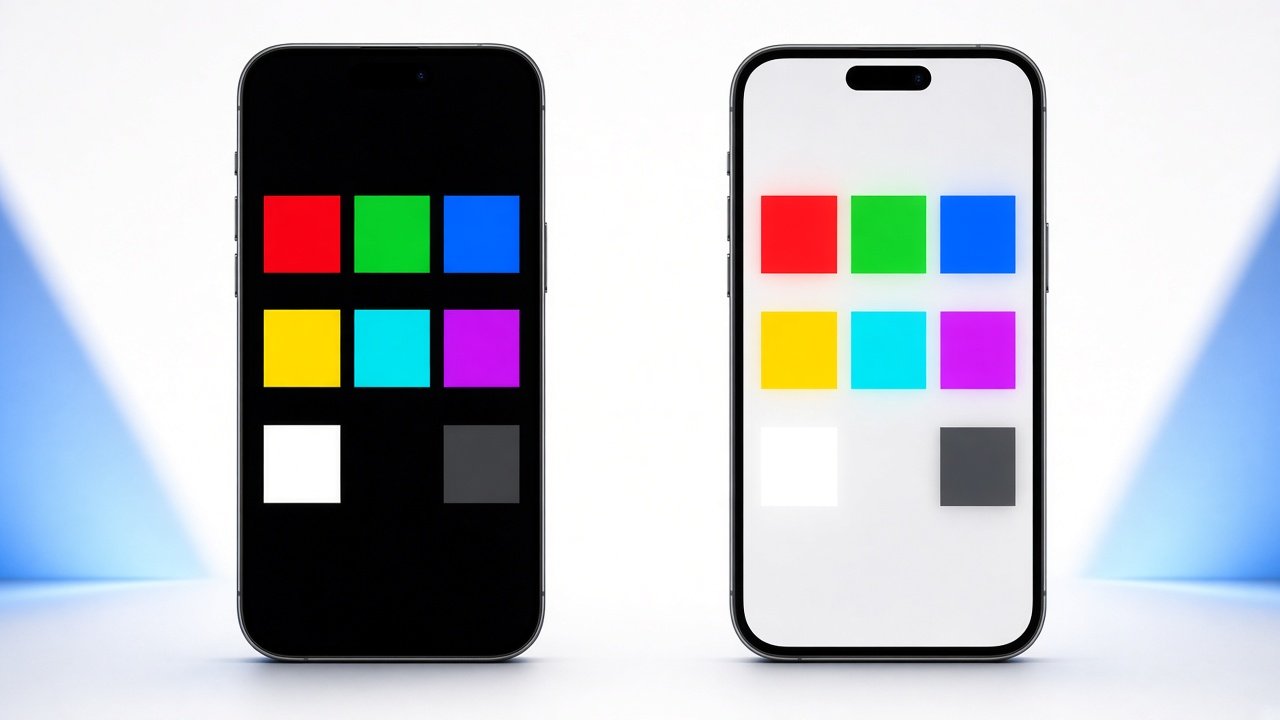
Image retention is the short-term cousin: a temporary ghost that fades after the content changes. An OLED screen burn-in test uses controlled fills to see whether a ghost is sticky. If it survives across gray, white, and RGB screens for several minutes, you are looking at wear, not a brief persistence effect.
Manufacturers add pixel shifting, logo luminance limits, and screen savers. Those features delay burn-in; they do not make OLED immune. High brightness plus static UI is still the main risk.
OLED Focus
Pixel wear & color shift
Subpixel View
Gray and RGB fills
Any OLED Device
Phone, tablet, monitor
How to Run an OLED Screen Burn-In Test
Warm up the panel with normal use for a minute, then switch to fullscreen test fills at high brightness with motion features off.
- Mid gray: The most sensitive view for UI silhouettes.
- Dark gray: Emphasizes dimmer aged regions.
- Full white: Shows overall uniformity and large dim zones.
- Pure R/G/B: Reveals which subpixels aged most.
Scan edges, camera cutouts, and common chrome zones. Step back a meter as well as inspecting up close—some ghosts are easier at a slight distance. Wait five minutes and recheck to exclude temporary retention.
Compare findings with device guides for iPhone and Android UI specifics, or the LCD test if you are unsure of panel type.
OLED wear vs temporary retention
Why Early OLED Detection Matters
OLED wear is cumulative. Spotting a light ghost early lets you reduce static luminance, enable screen shift, and change layouts before the mark becomes obvious in everyday photos and videos.
For shoppers, OLED burn-in is one of the top reasons to reject or discount a used phone or monitor. A disciplined test protects your budget and expectations.
Creators and professionals should test after long timelines, dashboards, or editing UI sessions that keep rulers and panels fixed for hours.

OLED Prevention Tips & Next Steps
Enable pixel shift / screen move features where available. Hide static HUDs, use auto-hide taskbars, and avoid maximum brightness for fixed toolbars. Dark mode helps when UI chrome stays visible for long periods.
For TVs and monitors, use screensavers or sleep timers. For phones, limit always-on complexity. Re-test after firmware updates that change UI density or AOD styles.
OLED Screen Burn-In FAQ
Can burn-in be repaired? Pixel refresh utilities may help mild retention; they rarely erase true burn-in. Panel replacement is the real fix.
Do matte protectors hide burn-in? They can soften contrast but do not remove the underlying wear pattern.
Is QD-OLED immune? No. Different stacks age differently, but static bright content still risks uneven wear.
How long before burn-in appears? It depends on brightness, content, and hours. Heavy static use can show ghosts within months; light varied use may take years—or never become noticeable.
Ready to Inspect Your OLED Panel?
Run gray and RGB fills from this page’s tool area, then confirm with device-specific guides. Photograph mid-gray results in a dark room for a clear record.