
Screen Burn-In Test Online
Choose a quick test
Tap a card to jump straight into that set of tests.
Choose the test(s) you would like to perform
Tap a test to select it, or the info icon to see what it checks.
Exit this test?
Your progress on remaining tests will be lost. Completed results so far won't be saved.
Your results
Here's how your display performed across the tests you ran.
Before you start
- 1 Clean your screen so smudges aren't mistaken for dead pixels or clouding.
- 2 Dim the room for backlight bleed, light leakage, and black-level tests — these show up best in the dark.
- 3 Use normal room lighting for color, brightness, and uniformity tests.
- 4 For touch tests, use a finger or stylus and try to cover the entire screen, including edges and corners.
- 5 Fullscreen mode gives the most accurate results — allow it if your browser prompts you.
- 6 Motion and refresh-rate readings are approximate, browser-measured estimates — not exact hardware specs.
SCREEN TEST LAB
Display Burn-In Test Free
Free online screen burn-in test for phones, tablets, TVs, and monitors. Spot image retention, stuck pixels, and uneven OLED wear before permanent damage sets in. Use our guided checks for iPhone, Android, OLED, and LCD displays—clear visuals, practical steps, zero install.
Related Tools
iPhone Screen Burn-In Test
Super Retina OLED checks, notch and Always-On Display tips.
Phone Screen Burn-In Test
Universal phone workflow for any brand or panel.
OLED Screen Burn-In Test
Pixel wear, color shift, and subpixel inspection.
Android Screen Burn-In Test
Gesture bars, punch-hole cameras, and OEM UI wear patterns.
LCD Screen Burn-In Test
Retention versus backlight bleed and dead pixels.
Samsung Screen Burn-In Test
AMOLED panels, One UI navigation bar wear, edge-screen ghosting.
Monitor Screen Burn-In Test
Retention versus backlight bleed and dead pixels.
Laptop Screen Test
Test your laptop's screen for dead pixels, backlight bleed, color accuracy, and uniformity — right in your browser, no app required.
Tablet Screen Test
Test your tablet's screen for dead pixels, touch response, brightness, and color accuracy — right in your browser, no app required.
Macbook Screen Test
MacBook Screen Test helps you check your MacBook display for dead pixels, screen colors, brightness, and display issues.
Oppo Screen Test
Oppo Screen Test helps you check your display for dead pixels, colors, brightness, touch issues, and other screen problems.
Ipad Screen Test
iPad Screen Test helps you check your iPad display for dead pixels, colors, brightness, touch sensitivity, and other screen issues.
Google Pixel Screen Test
Google Pixel Screen Test helps you check your Pixel display for dead pixels, colors, brightness, touch sensitivity, and other screen issues.
Redmi Screen Test
Redmi Screen Test helps you check your display for dead pixels, colors, brightness, touch sensitivity, and other screen issues.
OnePlus Screen Test
OnePlus Screen Test helps you check your display for dead pixels, colors, brightness, touch sensitivity, and other screen issues.
What Is Screen Burn-In?
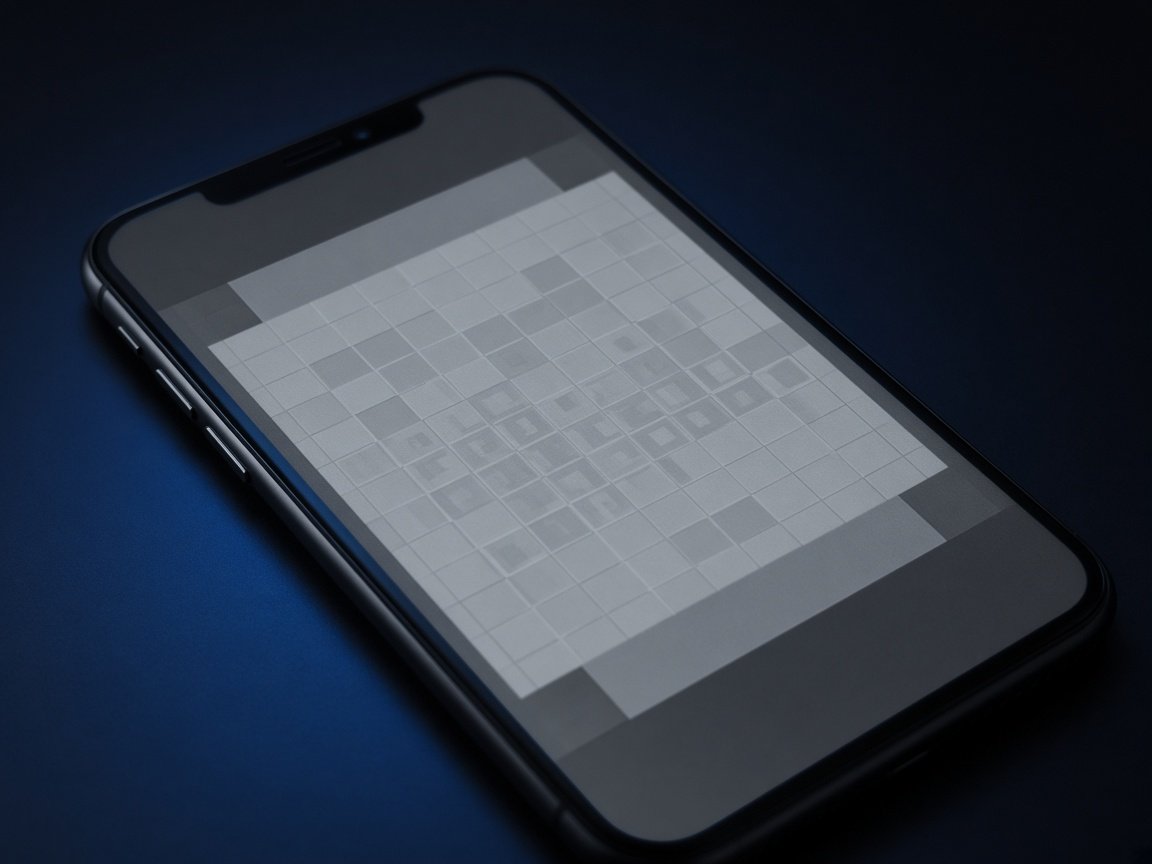
Screen burn-in (also called image persistence or image retention) happens when parts of a display age unevenly because the same bright UI elements stay on screen for long periods. Navigation bars, status icons, keyboards, game HUDs, news tickers, and paused video frames are common culprits. Over time those areas can look ghosted, dimmer, or discolored even when you switch to a new image. Understanding that difference between temporary retention and lasting wear is the first step toward a useful diagnosis.
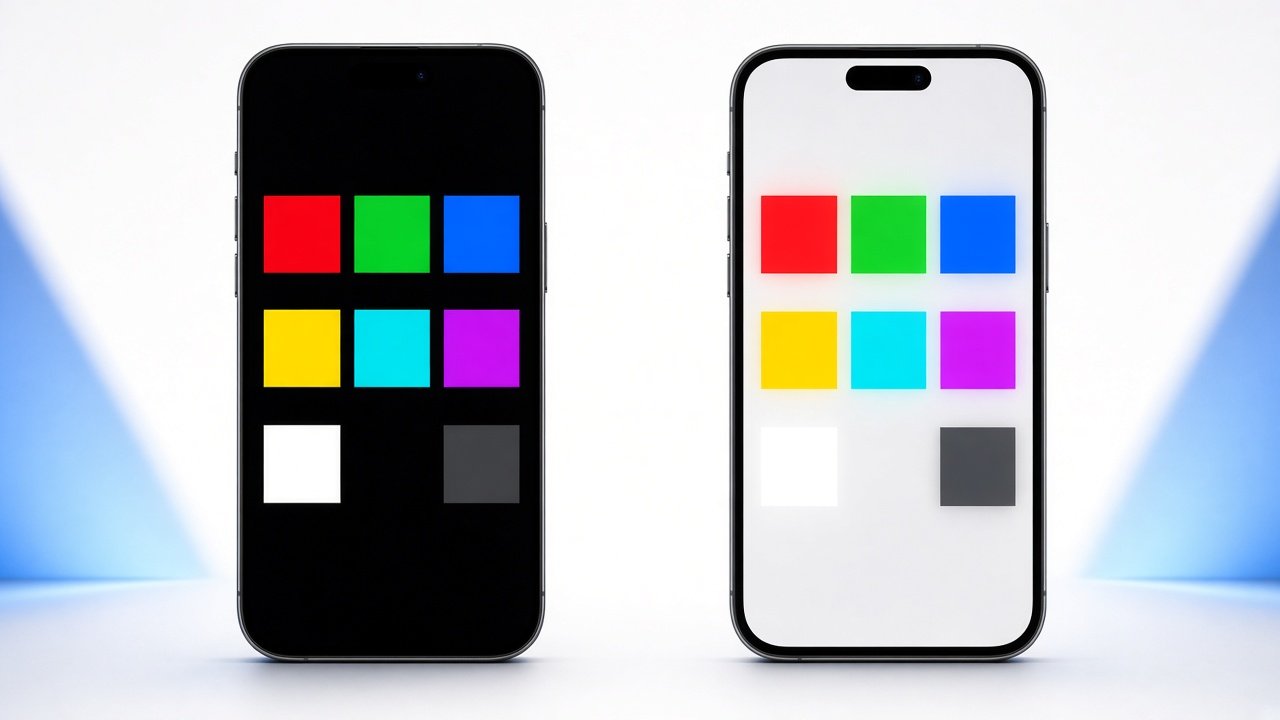
Modern phones use OLED, AMOLED, and LCD panels. OLED and AMOLED light each pixel individually, so static bright content can accelerate wear on those pixels. LCD panels use a backlight and liquid crystals; true permanent burn-in is less common, but temporary image retention and backlight unevenness still appear. That is why we publish dedicated guides for an OLED screen burn-in test and an LCD screen burn-in test so you can match the method to your panel type.
If you own an Apple device, start with our iPhone screen burn-in test. Android users should follow the Android screen burn-in test. Prefer a general walkthrough that covers any handset? Use the phone screen burn-in test and Phone Screen Burn-In Test pages for step-by-step checks, solid-color sweeps, and grayscale inspection tips. Each guide uses the same careful visual method so your results stay comparable from one device to the next.
All Phones
iPhone, Android & more
Visual Checks
Color, gray & ghost scans
Buyer Safe
Spot defects before you buy
How to Run a Screen Burn-In Test
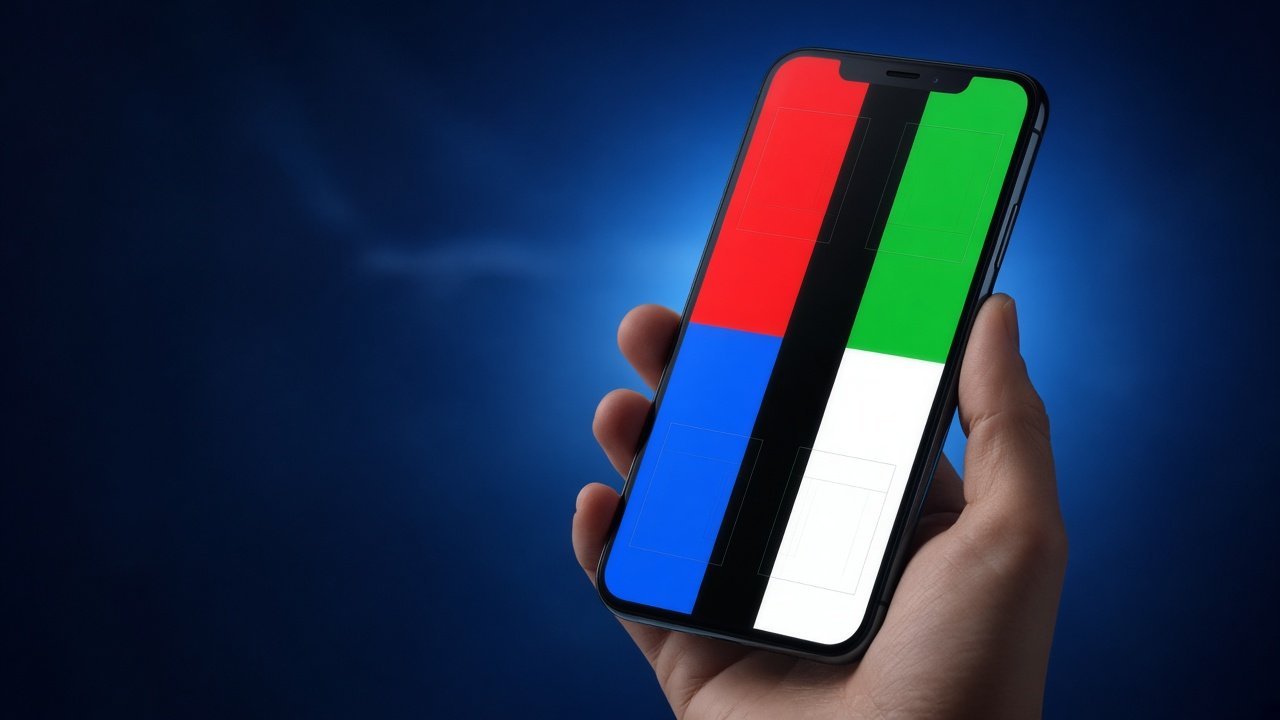
A reliable burn-in check is simple, free, and only takes a few minutes. Raise brightness so subtle ghosts are easier to see, disable auto-brightness if possible, and view the screen straight-on in a dim room. Cycle through full-screen solid colors—pure red, green, blue, white, black, and mid gray. Look for faint outlines of keyboards, navigation bars, notches, punch-hole cameras, or app icons that remain after the content changes. Take your time on gray fields; mid tones often reveal uneven aging that pure white can hide.
Next, open a clean wallpaper or a uniform gray field and slowly tilt the device. Burn-in usually stays fixed to the same pixels, while temporary image retention fades within seconds or minutes. Compare both halves of the display: uneven tint, a brighter stripe where a status bar lived, or a dim rectangle where a video player chrome sat are classic warning signs. If a shadow moves with viewing angle only on LCD devices, you may be seeing backlight behavior rather than OLED-style burn-in.
Repeat the process after charging overnight and after a long gaming or streaming session. Consistent ghosts across multiple solid colors are stronger evidence of permanent wear. Document what you see with a note or photo so you can track whether the issue worsens. Our specialized pages expand these steps for each platform, including the iPhone screen burn-in test, Android screen burn-in test, and the complete Phone Screen Burn-In Test. Re-running the same sequence weekly for a month is often enough to decide whether a mark is stable or fading.
OLED vs LCD visual cues
Why Early Detection Matters
Catching burn-in early helps you change habits before the display becomes distracting. Lower static brightness for always-on displays, enable dark mode where it truly reduces lit pixels, hide navigation hints when possible, and avoid leaving paused bright UIs on screen for hours. Many manufacturers include pixel-shift, screen savers, or burn-in compensation—knowing your panel type helps you use those tools wisely and avoid false panic when temporary retention clears after a reboot or a night off.
Buyers of used phones also benefit. A quick phone screen burn-in test before purchase can reveal seller-missed defects. Pair that with an OLED screen burn-in test if the listing advertises AMOLED, or an LCD screen burn-in test for older or budget LCD models. Combining color sweeps with grayscale inspection gives a clearer picture than a single white screen alone, especially under store lighting that can mask subtle ghosts.
Creators, support agents, and repair shops use the same workflow to explain issues to customers. Clear language plus repeatable full-screen colors reduces guesswork and shortens troubleshooting calls. Bookmark this homepage and the linked guides so you always have a consistent checklist for iPhone, Android, OLED, and LCD devices whenever someone asks whether a shadow on the glass is normal aging or a warranty concern.
Device & Panel Test Guides
Choose the guide that matches your device. Each page will include focused instructions, recommended color sequences, and tips for that platform. Links are ready for the pages you will publish next:
- iPhone screen burn-in test — Super Retina OLED checks, Dynamic Island and notch area inspection, Always-On Display tips.
- Android screen burn-in test — gesture bar, punch-hole camera, and OEM skin icon burn checks.
- phone screen burn-in test — universal phone workflow for any brand.
- Phone Screen Burn-In Test — expanded checklist for buyers and power users.
- OLED screen burn-in test — pixel-level wear, color shift, and subpixel patterns.
- LCD screen burn-in test — retention vs backlight bleed vs dead pixels.
Internal linking keeps readers moving from this overview into the exact procedure they need, which also helps search engines understand the topic cluster around screen burn-in testing.
Prevention Tips & Next Steps
Prevention is easier than replacement. Avoid maximum brightness for static apps, enable screen timeout, vary wallpapers, and do not leave navigation-heavy games paused on a bright HUD. On OLED phones, pure black themes can help because black pixels are off, but gray or white static bars still age those regions. On LCD, reduce long static contrast and watch for temporary retention after maps or e-readers. Small daily habits matter more than occasional extreme brightness for a few minutes.
If you already see mild ghosts, run periodic solid-color exercises, update the OS for panel compensation improvements, and reduce Always-On Display complexity. Severe burn-in usually needs panel replacement; testing first tells you whether the issue is temporary retention or lasting damage. Use this site as your hub, then dive into the iPhone screen burn-in test, Android screen burn-in test, OLED screen burn-in test, and LCD screen burn-in test whenever you need device-specific detail.
We will add an interactive on-page tool later. Until then, the educational sections above plus the internal guides give you everything required to evaluate a display carefully, explain findings clearly, and decide whether habits, settings, or hardware service should come next. Keep brightness sensible, keep content moving when you can, and re-test after long sessions so small problems stay small. Share the Phone Screen Burn-In Test checklist with anyone comparing used devices so everyone follows the same steps.
Screen Burn-In FAQ
Is burn-in the same as a dead pixel? No. Dead or stuck pixels are tiny points that stay one color. Burn-in is a larger ghost of repeated UI. Both can coexist, which is why solid-color and black/white screens are useful together during a careful inspection.
Can software fix burn-in? Software may reduce temporary retention and improve uniformity compensation, but deep permanent burn-in is physical wear. Testing helps you tell the difference before spending money on repairs or replacements.
How often should I test? Monthly is enough for most people. Test sooner after heavy gaming, navigation, or if you notice a faint keyboard silhouette. Follow the phone screen burn-in test routine for consistency and comparable notes over time.
Do LCDs burn in? Permanent LCD burn-in is uncommon compared with OLED, yet temporary image retention and backlight issues still matter. Use the LCD screen burn-in test page for the right expectations and checks, and pair it with the OLED screen burn-in test if you switch between panel types in your household or shop.
Ready to Check Your Display?
Follow the guides for iPhone, Android, OLED, and LCD panels. An interactive burn-in tool will be added here soon—bookmark this page and re-test after long sessions.