
Samsung Screen Test Online - Touch, Pixel, Display Checker
Choose a quick test
Tap a card to jump straight into that set of tests.
Choose the test(s) you would like to perform
Tap a test to select it, or the info icon to see what it checks.
Exit this test?
Your progress on remaining tests will be lost. Completed results so far won't be saved.
Your results
Here's how your display performed across the tests you ran.
Before you start
- 1 Clean your screen so smudges aren't mistaken for dead pixels or clouding.
- 2 Dim the room for backlight bleed, light leakage, and black-level tests — these show up best in the dark.
- 3 Use normal room lighting for color, brightness, and uniformity tests.
- 4 For touch tests, use a finger or stylus and try to cover the entire screen, including edges and corners.
- 5 Fullscreen mode gives the most accurate results — allow it if your browser prompts you.
- 6 Motion and refresh-rate readings are approximate, browser-measured estimates — not exact hardware specs.
SAMSUNG SCREEN LAB
Samsung Screen Test
Free Samsung screen test for Galaxy phones and tablets with Dynamic AMOLED or LCD panels. Find dead pixels, touch issues, edge problems, color tint, and burn-in from AOD or navigation.
Galaxy Focus
AMOLED & edge checks
AOD Aware
Clock & icon ghosts
Trade-In Ready
Document before selling
How to Run a Samsung Screen Test
Raise brightness, disable Extra Dim, and use fullscreen.
- Solid RGBW for dead/stuck pixels
- Edge-to-edge touch, especially curved sides
- White for pink/green tint shifts
- Gray hold for AOD clock and nav ghosts
Optional: note Good Guardians / screen protections only after you finish visual checks—do not run refreshes to hide issues on a sale unit.
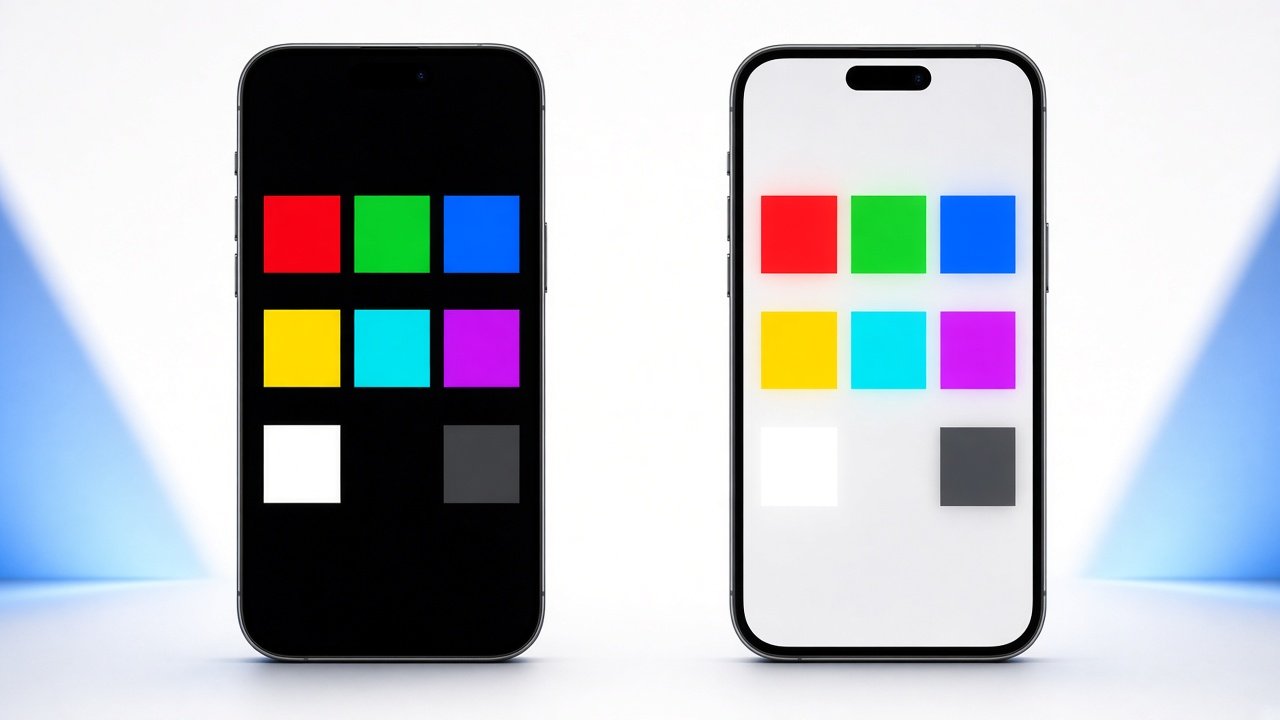
Galaxy AMOLED wear cues

What Is a Samsung Screen Test?
Samsung Galaxy displays are bright and colorful—and often Always On. An Samsung screen test looks for pixel defects, uneven aging from AOD, and touch dead zones on flat or curved Edge models.
One UI features like Edge panels and bright keyboards create recognizable silhouettes on gray. Catch them early.
Related Tools
iPhone Screen Burn-In Test
Super Retina OLED checks, notch and Always-On Display tips.
Phone Screen Burn-In Test
Universal phone workflow for any brand or panel.
OLED Screen Burn-In Test
Pixel wear, color shift, and subpixel inspection.
Android Screen Burn-In Test
Gesture bars, punch-hole cameras, and OEM UI wear patterns.
LCD Screen Burn-In Test
Retention versus backlight bleed and dead pixels.
Samsung Screen Burn-In Test
AMOLED panels, One UI navigation bar wear, edge-screen ghosting.
Monitor Screen Burn-In Test
Retention versus backlight bleed and dead pixels.
Laptop Screen Test
Test your laptop's screen for dead pixels, backlight bleed, color accuracy, and uniformity — right in your browser, no app required.
Tablet Screen Test
Test your tablet's screen for dead pixels, touch response, brightness, and color accuracy — right in your browser, no app required.
Macbook Screen Test
MacBook Screen Test helps you check your MacBook display for dead pixels, screen colors, brightness, and display issues.
Oppo Screen Test
Oppo Screen Test helps you check your display for dead pixels, colors, brightness, touch issues, and other screen problems.
Ipad Screen Test
iPad Screen Test helps you check your iPad display for dead pixels, colors, brightness, touch sensitivity, and other screen issues.
Google Pixel Screen Test
Google Pixel Screen Test helps you check your Pixel display for dead pixels, colors, brightness, touch sensitivity, and other screen issues.
Redmi Screen Test
Redmi Screen Test helps you check your display for dead pixels, colors, brightness, touch sensitivity, and other screen issues.
OnePlus Screen Test
OnePlus Screen Test helps you check your display for dead pixels, colors, brightness, touch sensitivity, and other screen issues.
Ready to Test Your Samsung Screen?
Run the on-page checks, photograph gray results, and compare with other Android guides as needed.
Samsung Care Tips
Is your Samsung phone getting slow, hot, or showing screen problems? A few simple habits can prevent most of these issues and keep your phone working well for years.
Protect the screen. Use a good screen protector and a strong case to avoid cracks and scratches. Lower the brightness when you do not need it high, and set a short screen timeout. This reduces the chance of burn-in. Avoid leaving the same image or app on screen for hours.
Keep the battery healthy. Do not let the battery drop to 0% often or stay at 100% all night. Use the original or a certified charger. In Settings, turn on Protect battery (limit to 85%) if your phone has it. Keep the phone away from direct sun, because heat is the biggest enemy of the battery.
Keep it fast and clean. Restart your phone once a week. Delete apps you do not use and clear old files. Install software updates when they arrive, since they fix bugs and improve security. Use Device care in Settings to check storage, battery, and memory.
Clean it the right way. Wipe the screen with a soft, dry microfiber cloth. Clean the speaker and charging port gently with a soft brush. Never push pins or sharp tools inside.
Test your screen often. Run a quick screen test every few months to catch dead pixels, color problems, or burn-in early, while you may still be covered by warranty.
Why Samsung Testing Matters
Have you ever noticed a tiny black dot on your Samsung screen, a faint ghost of the navigation bar, or a yellow tint that was not there before? These small problems are easy to ignore, but they often get worse with time. A screen test helps you find the exact problem fast. If you see a dot that never changes color, the test confirms it is a dead pixel. If an old icon stays visible on a white or gray screen, you know it is burn-in. If colors look strange, the test shows whether red, green, or blue is weak.
Once you know the problem, you can fix it the right way. You can claim a repair or replacement while your warranty is still active, lower your brightness and screen timeout to stop burn-in from spreading, or change the display settings if the colors are off. The test is also a smart step before buying a used Samsung phone, because it shows hidden screen damage that the seller may not tell you about. In short, testing turns a vague worry (“something looks wrong with my screen”) into a clear answer and a clear next step, and it can save you money and stress.
Samsung Screen Test FAQ
Quick answers to common questions about dead pixels, burn-in, and color problems on your Samsung screen.
What is a Samsung screen test?
A screen test shows solid colors and patterns on your display so you can spot problems like dead pixels, burn-in, and color errors. It takes only a few minutes.
What is a dead pixel?
A dead pixel is a tiny dot on the screen that stays black or stuck on one color. It does not change when the picture changes. You can see it best on a plain white, black, or colored background.
What is screen burn-in?
Burn-in is a faint ghost image that stays on the screen, like the navigation bar or an app icon. It can happen on AMOLED screens when the same image stays on for many hours at high brightness.
Can burn-in be fixed?
Real burn-in is permanent, but you can stop it from getting worse. Lower your brightness, use a short screen timeout, and turn on dark mode. If the ghost image is only light, it may fade a little. If it is strong, contact Samsung support.
Can a dead pixel be repaired?
A pixel that is stuck on one color can sometimes return to normal, but a fully dead pixel usually cannot. If you have many dead pixels or they are growing, ask for a repair or replacement.
How often should I test my screen?
Test it every few months, and always test right after you buy a new or used phone. Also test after a drop or after water gets into the phone.
Is the screen test safe for my phone?
Yes. The test only shows colors and patterns on your screen. It does not change any settings or harm your display.
Does the test work on all Samsung phones and tablets?
Yes. It works on Galaxy S, Galaxy A, Galaxy Note, Galaxy Z, and Galaxy Tab devices that use a web browser.
What should I do if I find a problem?
Take a clear photo of the problem. Check if your phone is still under warranty, then visit a Samsung service center or contact Samsung support.